

Showing posts with label apps. Show all posts
Showing posts with label apps. Show all posts
Monday, January 4, 2016

Sunday, October 5, 2014
Week 9- Math Relays, 3 Free Apps, & Newton's Laws
We started our math this week with a relay race. I love these relay races and the kids really have to work together to get the right answer. It is also a great way to warm up before jumping into multiplying decimals. The relay races are from Lorraine Salmoe on TpT. Check out her store for the math relays.


We finished up our study of Newton's Laws of Motion so I wanted my students to use the iPad minis to create a project to show they understand the laws. I gave them an option. They could pick Sock Puppets, Tellagami, or Yak It Kids to create the video.
Sock Puppets (free)

Tellagami (free)

Yakit Kids (free)

I loved hearing them work together and brainstorm ideas!

Some groups even used iMovie to combine each of the 3 laws videos into one. I told them to play with the apps and see what they could do. I'm familiar with each of these apps but I've learned not to limit the kids because I don't know how to do something. Normally someone will figure it out and share with others who want to use the app.
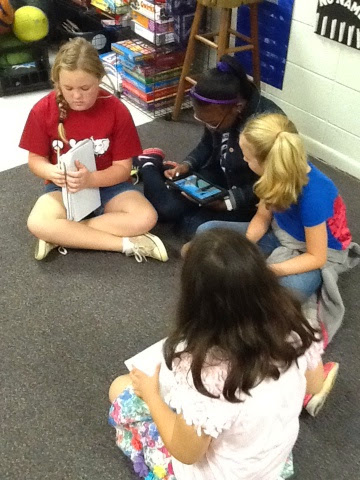
Here are just a few of the finished projects.
STUDENTS: This week is our fall break. What are your plans for the week?

Thursday, July 19, 2012
First Summer Week in Classroom
So we still have almost a month of summer left but my principal is wonderful and she lets us in the building early. I love having time to get in the room and work at my pace to get things done instead of having to rush and get it done in just a few days. I worked a few hours each day. The great thing is that if I'm not feeling it that day I don't have to work.
So I have seen several people posting about how to display their classroom rules. I did this last year and I really like it. I just used PowerPoint to type the rules and added a text box behind the text to add the polka dots (to match my colors). I glued the rules to the ribbon and then glued the ribbon to the wall. Voila!

Here is the sign I ordered from Vistaprint. I was happy with it because it isn't just heavy paper. The print isn't super sharp but it works for what I need it for. Now I just need to find a place to put it in my classroom wall. It is pretty large so I'll post once I get it on the wall.

Another surprise when I returned to school, we had some babies this summer! I cleaned their habitat and found 7 babies. See the tiny one I circled? That's one of the babies. As you can see we have PLENTY of hissing cockroaches and the sad thing? You can't even see all of the adults in this picture. They love to get under things so there are a lot hiding.

Someone asked me about my Good Job Jar so I snapped a photo today and decided to share how I use it. I give tickets out to my students when they do something good, answer a question no one else knows the answer to, post a comment on the blog, etc. We also do big word every day. I post the scrambled letters for a big word and the kids try to figure out what the word is. The first 3 students to get it right get a ticket and then they come to the Smartboard and rearrange the letters to reveal the big word. I draw tickets on Friday afternoon (this also makes a great probability lesson and I don't even have to "teach" it). We count the number of tickets in the jar and determine the probability of some one's name being drawn. As the year goes, we also find the percent.
I draw 4 tickets. The first 3 are given the choice of a homework pass or lunch with a friend pass. This year I'm going to add iPad time pass that I had made on Vistaprint. Then the last name drawn is the "lucky dog" and that person gets all the passes.

I've been seeing these cute drawers on Pinterest so I decided to make some too! My room colors are red, black, and white. Plus I love Hello Kitty so this was just what I needed. I cut the paper and then used my Cricut to cut out little Hello Kitty heads for the labels. I ended up writing on them instead of printing them because it was going to be a pain to print labels and cut them. I love my husband's handwriting but I just did it myself because I wasn't sure what I was going to put in each one.

The last thing I'm going to share is the app I used to write on my photo. Skitch is a free app that lets you write on photos or add text and shapes.

I'm super excited that I'm almost up to 100 followers. I never thought that would happen! Thanks to all my readers and those who comment.
So I have seen several people posting about how to display their classroom rules. I did this last year and I really like it. I just used PowerPoint to type the rules and added a text box behind the text to add the polka dots (to match my colors). I glued the rules to the ribbon and then glued the ribbon to the wall. Voila!
Here is the sign I ordered from Vistaprint. I was happy with it because it isn't just heavy paper. The print isn't super sharp but it works for what I need it for. Now I just need to find a place to put it in my classroom wall. It is pretty large so I'll post once I get it on the wall.
Another surprise when I returned to school, we had some babies this summer! I cleaned their habitat and found 7 babies. See the tiny one I circled? That's one of the babies. As you can see we have PLENTY of hissing cockroaches and the sad thing? You can't even see all of the adults in this picture. They love to get under things so there are a lot hiding.
Someone asked me about my Good Job Jar so I snapped a photo today and decided to share how I use it. I give tickets out to my students when they do something good, answer a question no one else knows the answer to, post a comment on the blog, etc. We also do big word every day. I post the scrambled letters for a big word and the kids try to figure out what the word is. The first 3 students to get it right get a ticket and then they come to the Smartboard and rearrange the letters to reveal the big word. I draw tickets on Friday afternoon (this also makes a great probability lesson and I don't even have to "teach" it). We count the number of tickets in the jar and determine the probability of some one's name being drawn. As the year goes, we also find the percent.
I draw 4 tickets. The first 3 are given the choice of a homework pass or lunch with a friend pass. This year I'm going to add iPad time pass that I had made on Vistaprint. Then the last name drawn is the "lucky dog" and that person gets all the passes.
I've been seeing these cute drawers on Pinterest so I decided to make some too! My room colors are red, black, and white. Plus I love Hello Kitty so this was just what I needed. I cut the paper and then used my Cricut to cut out little Hello Kitty heads for the labels. I ended up writing on them instead of printing them because it was going to be a pain to print labels and cut them. I love my husband's handwriting but I just did it myself because I wasn't sure what I was going to put in each one.
The last thing I'm going to share is the app I used to write on my photo. Skitch is a free app that lets you write on photos or add text and shapes.
I'm super excited that I'm almost up to 100 followers. I never thought that would happen! Thanks to all my readers and those who comment.
Friday, July 13, 2012
More iPad Apps
I thought I'd share a few more apps that I've used with my students (or that I discovered this summer). The first one is Measure Map ($1.99). You can go anywhere in the world and measure anything. The first picture you can see the US Space & Rocket Center. I measured the space shuttle and the area and perimeter shows in the top left corner.

Then I found my school and measured an area of the playground. This would be great for kids to use to measure things they are familiar with.


Lobster Diver (free) is an app to review numbers, fractions, and decimals. The kids love it! You have to dive down at the given number without getting hit by the eel. There is also a section where you have to cut an eel into pieces using the fraction given.

Symmetry Shuffle is great to help students review translations, reflections, and rotations. As you can see, the app uses both terms (slide/translation) so it works with multiples grades. When you start all the cups are sepia and you have to move the boxed cup around and place it on top of the cup the correct way to make it change to a colored cup.

The last one is called Factor Samurai and it reminds me a lot of fruit ninja. Different numbers fly up and if they are prime you don't cut it. But if it is composite you slice it into factors.

I'm excited that I'm going to be able to get into my classroom to start working next week. So I'm sure I'll have some pictures to share next week.
Don't forget to check out my Teaching Resources page! I'm still working on it and if you have any suggestions I'd love to hear them. Thanks!
Then I found my school and measured an area of the playground. This would be great for kids to use to measure things they are familiar with.
Lobster Diver (free) is an app to review numbers, fractions, and decimals. The kids love it! You have to dive down at the given number without getting hit by the eel. There is also a section where you have to cut an eel into pieces using the fraction given.
Symmetry Shuffle is great to help students review translations, reflections, and rotations. As you can see, the app uses both terms (slide/translation) so it works with multiples grades. When you start all the cups are sepia and you have to move the boxed cup around and place it on top of the cup the correct way to make it change to a colored cup.
The last one is called Factor Samurai and it reminds me a lot of fruit ninja. Different numbers fly up and if they are prime you don't cut it. But if it is composite you slice it into factors.
I'm excited that I'm going to be able to get into my classroom to start working next week. So I'm sure I'll have some pictures to share next week.
Don't forget to check out my Teaching Resources page! I'm still working on it and if you have any suggestions I'd love to hear them. Thanks!
Sunday, July 8, 2012
Virtual Manipulatives on the iPad
I decided I would share some of my favorite virtual manipulatives! I have these apps on my iPad and can't wait to try them out with my students next year.
Dice is the first (free) app I want to share. This app allows you to choose the color and number of dice. You can have from 1-20 dice and they can be red, white, black, blue, green, or yellow. I think this will be great because dice are forever rolling in the floor and kids are down on their hands and knees looking for them. This app will keep them from searching and actually stay focused on the math games.

Geoboard is up next and the best part? This one is free!! I love using geoboards but hate getting them out because it never fails, a rubber band breaks. Ever have a students you weren' sure could handle all those rubber bands (tempting right)? This allows you to use the geoboard without having to worry about rotting rubber bands or flying rubber bands.

Coin Toss is another free app. This one allows students to toss a coin to learn about probability without that problem of finding the coin when it falls or the sound of the coin over and over!

Do you know about Virtual Manipulatives? It is a free app that gives you fraction bars to manipulate. When you press and hold the fraction piece it also shows the equivalent percent and decimal!

GA-Spinner (free) is a spinner app that allows you to use a spinner with the touch of a finger. When the spinner stops it says the number and color of the space you land on.

Magnetic ABC ($1.99) is an app I found and couldn't pass up. The bottom scrolls between the alphabet, numbers, symbols, and some pictures. My plan for this app was to have students create incredible equations and then use Educreations to record an explanation.

So I spent some time with my niece, Kayla, this weekend. She just finished Kindergarten and I asked her if she would help me play with this program. We took a screen shot of the problem we created in Magnetic ABC.

Then we brought it into Educreations and she explained her thinking as she solved the problem. Yes, you can hear her sisters because they wanted to play with the iPad too. And yes, I know I am super country! I hate listening to myself on a recording but I still wanted to share.
Can you see the possibilities for using this in the classroom? I can't wait!
Dice is the first (free) app I want to share. This app allows you to choose the color and number of dice. You can have from 1-20 dice and they can be red, white, black, blue, green, or yellow. I think this will be great because dice are forever rolling in the floor and kids are down on their hands and knees looking for them. This app will keep them from searching and actually stay focused on the math games.
Geoboard is up next and the best part? This one is free!! I love using geoboards but hate getting them out because it never fails, a rubber band breaks. Ever have a students you weren' sure could handle all those rubber bands (tempting right)? This allows you to use the geoboard without having to worry about rotting rubber bands or flying rubber bands.
Coin Toss is another free app. This one allows students to toss a coin to learn about probability without that problem of finding the coin when it falls or the sound of the coin over and over!
Do you know about Virtual Manipulatives? It is a free app that gives you fraction bars to manipulate. When you press and hold the fraction piece it also shows the equivalent percent and decimal!
GA-Spinner (free) is a spinner app that allows you to use a spinner with the touch of a finger. When the spinner stops it says the number and color of the space you land on.
Magnetic ABC ($1.99) is an app I found and couldn't pass up. The bottom scrolls between the alphabet, numbers, symbols, and some pictures. My plan for this app was to have students create incredible equations and then use Educreations to record an explanation.
So I spent some time with my niece, Kayla, this weekend. She just finished Kindergarten and I asked her if she would help me play with this program. We took a screen shot of the problem we created in Magnetic ABC.
Then we brought it into Educreations and she explained her thinking as she solved the problem. Yes, you can hear her sisters because they wanted to play with the iPad too. And yes, I know I am super country! I hate listening to myself on a recording but I still wanted to share.
Can you see the possibilities for using this in the classroom? I can't wait!
Subscribe to:
Posts (Atom)